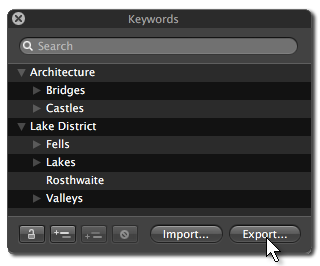
Moving your workflow from Aperture to Lightroom is not difficult, and it doesn’t mean losing all the keywords and other metadata you’ve entered in Aperture. It just requires a little bit of thought and care.
But where do you begin?
Backup
Whenever you move data from one system to another, it’s a lot easier to proceed if you’re confident that you can always get back to your starting point.
That depends on having everything well backed up, so run a complete backup of your Aperture library and pictures.
A backup is only as good as your ability to restore the data. So what better time to review both tasks and confirm that your work is as safe as you thought it was?
Preparation in Aperture
Lightroom only works with files in regular folders. So first make sure that in Aperture all your photos are “referenced”, not “managed”, that is in normal Finder folders rather than hidden inside the Aperture library or vaults.

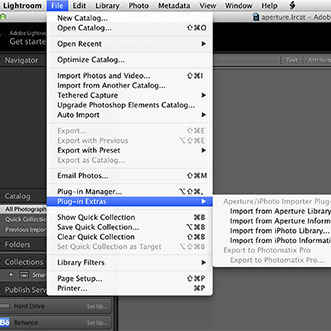
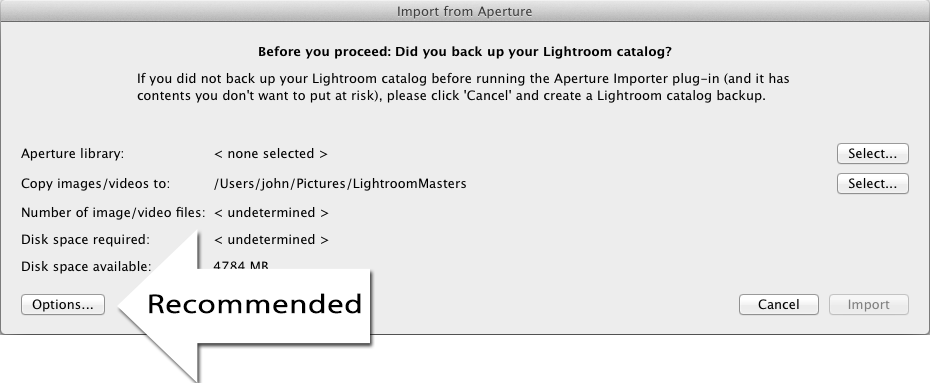
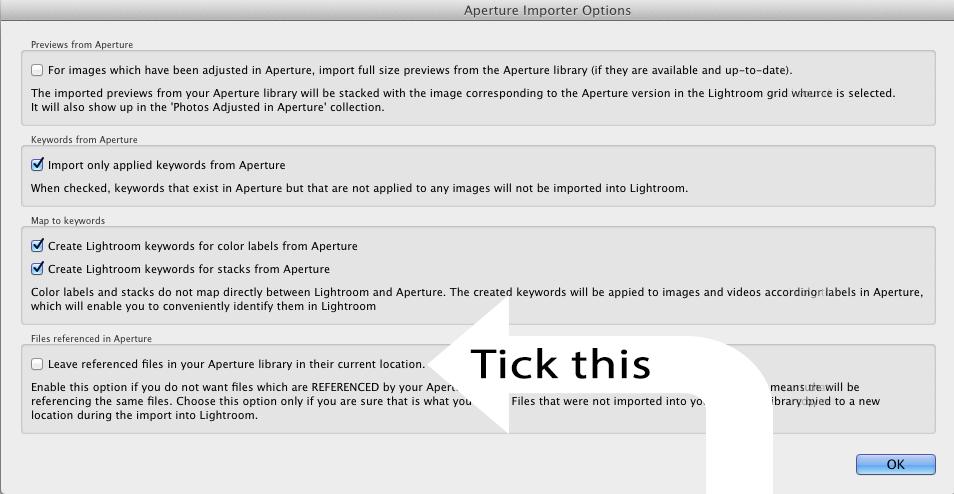
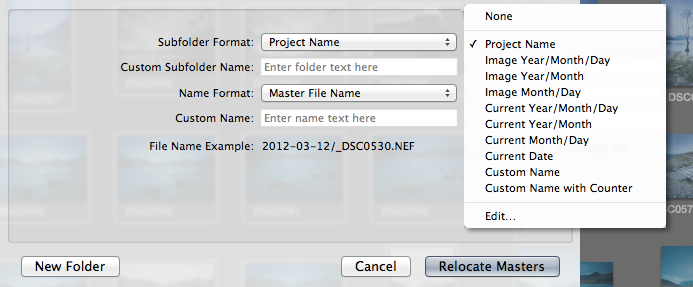
In Aperture, use File > Relocate Masters to ensure all files are in regular Finder folders
Aperture’s File > Relocate Originals (“Masters” in earlier versions of Aperture) is the menu command to move any managed files from the Aperture library or vault and put them into regular folders.
Choose a folder in Pictures or somewhere sensible, and then tell Aperture how it should create subfolders.
If you want your Aperture project structure to be reflected in the new folder structure, or if you want a date-based folder structure, Relocate Originals / Masters has suitable options.
Once the files are in regular Finder folders, you can import them into Lightroom. But hold on a bit….
Aperture adjustments, keywords and other metadata
Adjustments made in Aperture do not convert into Lightroom adjustments – and vice versa. This is mainly because the adjustment sliders are too different or have no equivalents in the other program. If you want to keep the ability to output pictures precisely as they were in Aperture, you’ve two alternatives:
- Keep Aperture on your computer and open it whenever you need to reprint pictures
- Export versions in TIF or JPEG from Aperture
Lightroom can’t read Aperture’s adjustments, but it’s important to know all your Aperture work is not lost and that your keywords and other metadata or information are not trapped in Aperture. Keywords, ratings and other metadata are covered by the industry standard IPTC. While this doesn’t cover everything (eg colour labels, custom fields), you should be able to transfer almost everything else.
Alternative approaches
Essentially you’ve two alternative ways to get keywords and other IPTC information out of Aperture, and you should think through both of them before proceeding.
Method 1 – Metadata > Write IPTC to Originals (Masters)
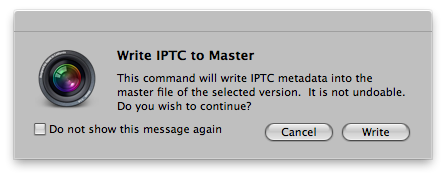
Aperture 3′s menu command “Write IPTC to Master” writes keywords and other metadata directly into your raw files. It can be good, but think
The more straightforward method is to select all the pictures in Aperture 3 and choose the command Metadata > Write IPTC to Master command (for Aperture 2 see method 2). It seems to include all IPTC metadata but not any GPS data added in Aperture (technically this isn’t IPTC data).
This writes the metadata directly into the masters, even if they are proprietary raw files. So you should ask yourself if you think it is a good idea to write directly to file formats which are not publicly-documented? Certainly in Aperture’s early days Apple advertised that it never changed your raw files….
On the other hand, if you have your pictures properly backed up there probably isn’t too much risk.
Method 2 – File > Export > Originals (Masters)
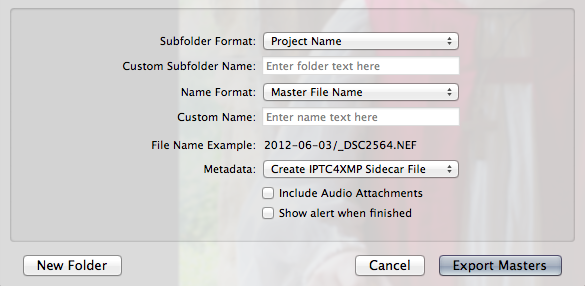
An alternative method can be used in Aperture 2 or 3. It is the safer method, and is generally the way I recommend, but it does require much more disc space as it creates copies of your master files. It does include GPS data.
Just select the pictures and choose File > Export > Originals (Masters).

File > Export Masters allows you to preserve Aperture projects in your folder structure and lets you carry your keywords and other metadata over to Lightroom
You can make the export into new Finder folders which match your Aperture project structure – that’s the Subfolder setting.
In Metadata you should choose the option to write IPTC XMP sidecar files. These files will go into the folders next to the images and allow Lightroom to read the keywords and other metadata that you entered in Aperture. So it avoids the need for Aperture to write the metadata directly into proprietary raw files.
Import into Lightroom
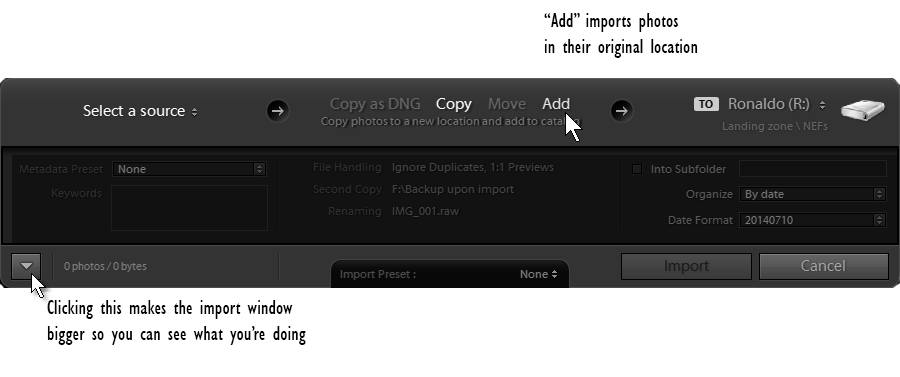
Now you can register or “import” the pictures into Lightroom. Make sure you choose “Add” in LR’s Import dialog. This is more helpful if you chose option 1 because it leaves the files where Aperture knows they are, just in case you later need to use Aperture for something.
Also, perform a careful review of what you’ve imported into Lightroom. For example, does Lightroom now show the same number of master files as Aperture contained? If there’s a difference, find out why. Have you not imported some folders into Lightroom? Have some file types failed to import?
I suggest leaving the new “ex-Aperture” folder structure (the one created by Relocate Originals / Masters) exactly as it is, and never renaming or moving any of the files or folders that are in there. This makes it easy to go back to Aperture whenever you want to reprint one of these pictures with their Aperture adjustments. With new pictures, put them into a new folder structure – I’d recommend simply using Lightroom’s default date-based system. So in the end all your work would be under a couple of top-level folders – “ex-Aperture” and “Photos”.
So it’s not quite as difficult to escape from Aperture as you might have feared – surprisingly for Apple, they made it rather easy.
Hiya
These instructions sound great but I am slightly confused on the association of the keywords and IPTC metadata with the newly created Lightroom catalog.
1) By doing ‘Relocate Masters’ I get my masters out of the Aperture 3 library package – easy enough
2) I can ‘Add’ this folder structure to a Lightroom catalogue and still maintain compatibility with Aperture – again easy enough
3) You suggest using File > Export Masters from Aperture to be able to grab the keywords and IPTC metadata. This action creates a new folder structure of the masters and the sidecar files. How can I get those associated with the Lightroom catalogue I created in (2) above? Sorry if I’m being dim and missing the obvious, but I am not clear on this step.
Thanks in advance
Geof
I’m not sure if I was clear that it is either the Relocate Masters route, or File > Export Masters. They are complete alternatives.
In your points 1 and 2, you’ve understood the Relocate Masters method. So do that in Aperture, then still in Aperture select them all and Metadata > Write IPTC Metadata. This will allow LR to pick up your Aperture keywords and other IPTC metadata – just import the files into your LR catalogue. This would be my choice providing you are OK with Write IPTC Metadata writing the metadata directly inside your raw files (and have solid backup of your raw files).
Export Masters is the safer way, because it puts the metadata into XMP sidecars. Its downside is that it creates a new folder structure which isn’t in Aperture, so it uses more disc space. You then import these folders into your LR catalogue.
Is that clearer? Far better to ask first!
Muxh clearer thanks, also as I suspected that the 2 possibilities offer different routes. I really want to keep Aperture compatibility using the same folder structurecfor the time being so will go with writing the metadata to the image files – and as you say I am glad I asked before I got stuck in too far. Of course my Aperture library is backed up so nothing terminal would have happened. Thanks for clearing that up and thanks for the post too – it’s the only one I can find to help me with what I am trying to achieve
You should note here that if your files are .jpg or .tif then you have to write the metadata to the master file. Lightroom won’t pick up the metadata on import from sidecar files if the files are .tif or .jpg.
Good point. In an earlier version of this article I recommended a separate workflow for those types of files.
This is extremely helpful information! I’m shocked and disappointed that Adobe doesn’t do a lot more to help explain/perform this procedure. But perhaps they’re afraid to piss off Apple! (i.e. Apple might yank all of Adobe’s software from Apple’s website)
I’m also confused by the statement that: “Lightroom can’t read Aperture’s adjustments…” Does that mean you’ll lose all of your edits if you move your photos from Aperture to Lightroom?! If so, that’s a huge negative that should be made much more obvious.
Thank you.
Scott
It doesn’t deter most people, and it might be fairer to say that people would be surprised if the adjustments could be read in other apps. If you follow my advice about the “ex-Aperture” folder structure, you can always open Aperture and output the pictures. Alternatively, you could do an Export > Versions and create TIFs / JPEGs with your Aperture work baked in.
Hi John,
Thanks for the response, but it was a surprisingly disappointing response. I think you’re dangerously underestimating how much photographers value their work.
Myself, and surely many others, also strongly disagree with your statement that, “So it’s not quite as difficult to escape from Aperture as you might have feared – surprisingly for Apple, they made it rather easy.” In fact, you’re the only person I’ve ever seen or heard say that it’s “easy” to switch from Aperture to Lightroom. To the contrary, most people find it confusing and highly risky, and there are tons of stories of collections being lost or messed up due to trying to go from Aperture to Lightroom.
So would I really have gone to the effort of writing and updating these notes if I didn’t think photographers cared about their pictures and associated metadata?
Migrating from one program to another is challenging, and yes it is risky, but you have to see this in the context of how difficult it can be. You don’t have to believe me, but I’ve seen plenty of migrations more difficult than this, where it’s impossible to extract any information. To their credit – and I don’t think it’s their default behaviour – Apple have made it perfectly possible to extract all your IPTC metadata. Sure, there’s not many step by step tutorials out there, probably for reasons like you suggested, and if you don’t know what you’re doing you can hit the rocks. However, follow the guidance I’ve set out and the move is somewhere between easy and “not difficult” – and notice the very first instruction is to confirm your backup is so solid that you can get back to where you began.
So the only organisation in Lightroom are folders and collections?
Aperture seems much more powerful in this respect, having projects/folders/albums/smart albums etc.
Due to the web templates and new map module, im very interested in LR4 but can’t work out how to generate a good organisational structure without having to rely on the archaic concept of using file system folders…
Not really, Darren. Aperture’s projects/folders/albums are all just virtual folders, like Lightroom’s collections which are multi-functional. So a collection can be a project, if you want, or an album or (virtual) folder. In addition, Lightroom has the folders panel which allows you direct access to physical folders through the standard UI – not through a “relocate masters” dialog. So Aperture offers only virtual folders as organisational tools, while Lightroom offers both virtual and physical folders.
The downside of system folders being available is, as you fear, that some people can keep using archaic ways and try to categorise their pictures with the folder system. But you don’t have to do so – I certainly wouldn’t – and I know of some people who actually hide their folders panel.
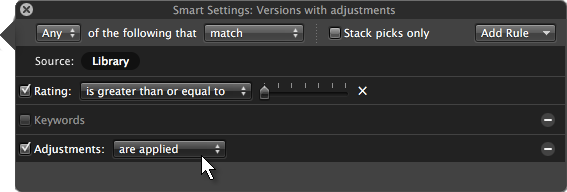
Smart albums are much better in Aperture though. They can query more of the metadata, including adjustments, and I like the way they hang off the project or album. In LR you have to hard code the folder/collection into the smart collection’s criteria.
I’m also considering migrating from Aperture to Lightroom, but I currently have my photos stored in reference, following the year/month/day folder structure format. However, my projects, folders, and albums in Aperture won’t be able to be converted to this structure in Lightroom to my understanding. Can anyone guide me to the right direction for migrating to Lightroom 4 but somehow I can continue to use my project/folder/album structure? Thanks.
If you wanted, you would be able to export everything in projects, but in my view the year/month/day structure is the ideal folder structure and I would be reluctant to change it.
In Lightroom you could reconstruct the project/folder/album structure as collections. Directly transferring is is harder, but not impossible. My inclination is to see if we can transfer that information to a standard IPTC field like job, and I’m pretty certain that can be done. Maybe you know how already, or this post looks promising, but I’d have to investigate. What I’m thinking is that we could copy the project name over to the job field. One might even make job equal to “My project – folder – album”, though I can foresee complications. When you then do the migration, the project would be found in the job field. how does that idea work for you?
I followed all the steps, and i believe “masters” are now called “originals” in aperture. So, I exported all my originals and created IPTC4XMP files. Everything exported fine, however, when i add/import them in lightroom… All adjustments are gone. Help please!
Jeremy, you’ll not be able to see any adjustments and I do say that “While Lightroom can’t read Aperture’s adjustments, it’s important to know that your keywords and other IPTC data are not trapped in Aperture.” There’s nothing that can be done about that with raw files, but are you using JPEGs or TIFs?
Can I keep using Aperture for importing and file/library management and have Lightroom recognize my new imports automatically (I am searching for a permanent Aperture/Lightroom symbiosis)?
It’s possible – but I suspect the effort would outweigh any advantages.
You would have to import into Aperture by reference, and import into Lightroom as well. In LR you would select the folder where Aperture imported the files and use LR’s Folder>Synchronize command to bring the files into LR. Not automatic, but not too much work – until one then starts going into the details.
You’d have to decide the tasks you want to do in each program and determine how to accomplish each one. Adjusting raw files in LR would mean you wouldn’t see the adjusted images in Aperture – so you might use DNGs in LR, and Aperture’s preview mode which would see the adjusted previews. Or another example, I’m almost totally Lightroom but I prefer Aperture to create standalone slideshows. So I export JPEGs from LR and use them in Aperture. Afterwards I could simply trash the Aperture library. But that’s a one-off exercise every so often, not an ongoing symbiosis!
The DNG idea is superb. I will try it to see. But in general I guess I need to make a choice…
How do you determine which images did not transfer, and how would you fix that? Lightroom says there are 13,369 images possible to add and I have 13,603 in aperature. I have not done the final ‘adding’ into LR yet. I used method 1. Also, why do some people say to ‘copy as dng’?
Thank you,
Lindsay
You are going to have to look at the detail. For example, does the 13603 include any versions? Maybe create a smart album in Aperture to list only masters/originals. What about managed files? Sure the 13603 doesn’t include any? Then like any data migration you need to break things down – how many TIFs are in LR versus how many in Aperture, then the JPEGs, PSDs…. You often find one category of pictures has a difference and reveals what hasn’t worked correctly.
Treat the DNG issue as something totally separate. I am a supporter of DNG and recommend it generally, and might recommend it if someone really insists on using LR and Aperture, but I don’t think you should contemplate it until you’re sure you’ve migrated everything properly.
In looking through the photos that LR is allowing me to ‘add’ there are some intermixed that are shaded and do not allow me to mark them to add. Why? How do I fix it? Thank you for the help!
Lindsay
They’re probably already in LR – that’s what the shading in the Import dialog indicates. There is a Do Not Import Duplicates box on the right side, but I’d recommend looking at some individual images and confirming what I suspect.
Followed your instructions and now my files are listed by dates in Lightroom and not in the folders that were set up by Aperture. Any suggestions? Thanks
Fred, “Listed by dates in Lightroom” strongly implies that you chose “Move” or “Copy” in Lightroom’s Import dialog – not the “Add” that I recommended. “Add” imports them where they are in your Finder folders.
Another possibility would be if you exported the originals from Aperture, in Aperture’s Export Originals dialog you chose date-based folders.
Hi, Anyway to keep the Folders inside of the Projects?
those are what I need.
Thanks.
Jesse, You’d have to ensure that Aperture exported them as Projects and Folders. I think that should be possible in Export Originals where you can choose the folder name. Best to experiment. Assuming Aperture can export them that way, Lightroom would respect it.
Hi John, Thanks for this post. I’m in the midst of transfering some earlier Aperture work into LR3 and I’m doing the step of ‘relocating masters’ and I’ve noticed that even though my original files are raw it’s transfering into jpg’s..anything I’m doing wrong? I like to work with raw all the way till I export to print..
please let me know how I can solve this.
thanks, mimi
“doing the step of ‘relocating masters’ and I’ve noticed that even though my original files are raw it’s transfering into jpg’s..”
That should not happen. Relocate Masters simply relocates files – I’ve never heard of it changing their format. So before continuing I suggest you carefully review the masters which Aperture is trying to relocate. Are they really JPEGs? Has the Aperture library got both the raws and the export-to-print JPEGs, and are you relocating the latter only? Do you should raw+JPEG? You’re going to need to look closer at the masters. Hope this helps.
I have read your solution to moving from aperture 3 to Lightroom. I have Aperture 2 and was wondering how I can write IPTC to Masters.
When O transferred the photos on my laptop I found that they only transferred jepgs and not raw images. How can I avoid this on my desktop?
Thanks in advance for your advice,
Regards,
Anne
Anne, unless I’ve forgotten something, Aperture 2 didn’t allow you to write IPTC to masters. You’ll have to follow method 2 – export masters.
As for JPEGs, this shouldn’t happen with Export Masters. Are you sure you’re not choosing Export Versions? How are you sure it’s exporting JPEGs? Certain you’re not seeing the files in Lightroom without adjustments? You should check exactly what you’re doing here.
Thanks for this guidance. I have one query. I’ve tried both the ‘embedded in master file’ and ‘sidecar’ method (from Aperture 3.4) and all works fine except that not all ITPC data is imported into LR4. I get keywords, but don’t get Title, Caption and others. Any suggestions?
I can’t think why this may be happening, Nigel. When I have this kind of problem, I’ll study one image in detail. One possibility is a conflict between the embedded metadata and the sidecar. With a raw file, I think Lightroom assumes the sidecar has the correct info. With file types where it expects the metadata to be embedded (JPEGs, TIFs, DNGs) it treats the embedded metadata as correct.
So review that test image in Aperture and ensure that the title and caption are indeed there, and also open the sidecar in TextEdit and check it too. Remember too Lightroom’s Metadata > Read Metadata command. And one last possibility (risk) is that you have Lightroom’s automatic xmp preference switched on. For now leave it off.
Thanks John – I’ve sorted it out. The problem was in LR. In the import screen, on the right hand panel, I had the metadata option set to ‘basic’. This meant that any fields included in this preset either took the values entered manually into LR or left them blank. By setting this option to ‘none’ all of my IPTC data was imported as expected. Success! Now I just need to export and import about 12000 images. Here goes…
Hi,
I am in the process of migrating from Aperture to Lightroom 4. Your article is very helpful. However, I still have some questions on the migration process and would appreciate if you could help.
I am able to relocate originals (in RAW format) stored in Aperture to an external hard drive. Like you indicated in your article, importing them into LR is straightforward.
I have a question on adjustments that I made to the photos in Aperture. Is there any way to import them into LR other than the following:
Use “Export Versions” to export the latest version of each image
Import them into LR
Thanks
Best Regards,
Duy Le
That’s right, Duy Le, you’d have to use Export Versions if you want to see those adjustments in LR, as extra files. Alternatively, note my advice about “leaving the new ex-Aperture folder structure exactly as it is, and never renaming or moving any of the files or folders that are in there” so you could always depend on Aperture for its adjustments.
Hi John,
Thank you for your helpful post.
I am going to try to export masters with the IPTC embedded and ‘add’ them to LR4, as you’ve suggested. In addition, Is it possible to preserve my adjustments by exporting as well as jpegs and then somehow have the jpeg ‘sit on top’ of the master, like Aperture does Raw+jpeg?
Also, I shoot in RAW+JPEG. Will that be a problem with your method?
“Is it possible to preserve my adjustments by exporting as well as jpegs and then somehow have the jpeg ‘sit on top’ of the master, like Aperture does Raw+jpeg? ”
“Also, I shoot in RAW+JPEG. Will that be a problem with your method?”
Yes, you can do this, though not quite as easily as you may wish. It’s also more difficult because of shooting raw + JPEG.
Dealing with raw + JPEG first, LR usually displays only the raw but also manages the JPEG in a hidden way. So if you move a raw to another folder, LR will also move the JPEG twin. There is also an option (Preferences > General) to import these JPEG twins and treat them as completely separate files.
Now, if you didn’t shoot raw + JPEG, I would probably advise you to export your Aperture adjustments as JPEGs to the same folders as the raws and with matching filenames. You could then choose the separate files option and use stacking. In your case, raw + JPEG makes that harder. My intuition is that you should export the Aperture adjustments as JPEGs but with a matching filename plus a suffix like “ap-adj”. I would recommend you test this – I’d be interested to hear how well it works for you.
Thank you John. I’ll let you know how it goes.
Hi,
I am about to migrate from Aperture 3 to LR 4. As far as the metadata, do I need to do either the write IPTC to Master or the XMP sidecar for the IPTC information if it’s just the IPTC information the was with the raw file upon original import into Aperture (like the aperture, ISO, shutter speed, etc.)? In other words, if I didn’t add any keywords etc. (or if I did, I really don’t need them in Lightroom) after the raw files where in Aperture.
Thank you for your article on how to do the migration.
Hi,
I originally sent this the other day, but it said it was awaiting moderation. Then it wasn’t there.
Anyway… My question was about the metadata that is originally with the raw files when first imported into Aperture that included aperture, shutter speed, ISO, etc. Do I need to either write the IPTC to master or do the XMP sidecar option before I import them into Lightroom in order for Lightroom to see that info? I’m not worried about keeping any keywords, etc that I may have entered after importing them into Aperture.
Thank you for your help as well as this very instructive article!
Sorry, Melanie, I was a bit slow going through approving comments.
” the metadata that is originally with the raw files when first imported into Aperture that included aperture, shutter speed, ISO, etc”
This information is EXIF data and is added to the raw files by the camera – Lightroom will automatically read it. The writing to master or sidecar is only for IPTC info like keywords.
Thank you!
I would like to migrate from Aperture to Lightroom. 99% of my files are .jpg already and wonder the best way to import them into Lightroom with their current adjustments.
Pretty well following the article, Anne. I know I talk about raw files, but it applies to JPEG originals too.
But you then mention “with their current adjustments”. There’s really no way to do this other than exporting versions – ie creating new “worked” or “adjusted” JPEGs. I would probably create a smart album of all items in the Aperture catalogue with adjustments, then export them to one a folder called something like “Aperture adjusted JPEGs” and broken up by date. I’d also ensure the filename has a suffix so it looks like “DSC_1234 ap-adj.JPEG”. Both these details will help you identify that they aren’t originals. Now, import the “Aperture adjusted JPEGs” folder into LR and do something more to distinguish them – eg give them the purple label. So by this point, your LR library would consist of folders with the JPEG originals, and the Aperture-adjusted JPEGs.
While that allows you to find and print these adjusted JPEGs, it is of course rather ugly. A slight variation might be to import the original and adjusted JPEGs pictures into LR using the Move or Copy options in LR’s import dialog box (choose Copy if you want Aperture to know where the original JPEGs are, and have enough disc space). This creates new dated folders, so each folder would consist of a mix of original and adjusted JPEGs.
How do those ideas sound?
I have been considering Aperture to LR for a while and have not seen it laid out as well as you have done. I utilize managed not referenced. I have all of my photos in “projects” named by event such as “Spain 2008″. So I understand how to export masters with side car files into folders with matching names. By using the named folders I guess I will not be able to use the date based LR system. Or, I guess I could if I wanted to move away from the named folders. If I was to change now would be the time. Is it true that as I add the files to LR I need to specify if I want to keep existing folders or go to date based? As you can tell I am a little confused.
Thanks!
@JohnD Yes. When you import into LR you get the choice of “Add” which leaves files where they are, and “Move” or “Copy” which would allow you to go date-based.
My inclination would be to “Add”, leaving older folders in the project structure. Import new pictures into date-based folders. After a short period, you should be able to decide to leave these folders in this way – or have the experience to change to a purely date-based structure.
John
Wow you sure saved me a lot of time. This post was great and it worked perfect! It worked so good I made this You Tube video as a visual walkthrough
http://youtu.be/lPRgdNvIIPE
and this blog post discussing it and a couple questions that you may have going through the process.
http://technologyformedia.com/2013/01/05/7-steps-to-switching-from-aperture-to-lightroom/
Again thanks so much for such a great walkthrough.
John, you are most patient, considerate and helpful as seen by the above, thanks!
I’m total newbie to LR, been with Aperture thru all the initial teething to what was a very good product–but now they combined iPhoto and Aperture libraries into a common structure that for me at least, not sure about others, has gotten royally screwed up. My 100,000 photo Aperture library has large holes, especially in the 90 most recent 2012 projects, around 30k photos. Doing all their fixes has only made the problem worse, so that now I can’t even open the library. In the past year they’ve gone thru 3.1, 3.2, 3.3 and now 3.4 still not fixed but worse. I’m very tired of it and hope LR is the escape.
But now I can’t go back with my back up to a stable library of what to me are very valuable photos. All have been managed not referenced. So the question is, how to get my files out since I’ve been forced to continuously upgrade both files, backups (vaults) and the program? And while I’m at it, hopefully eliminate the many duplicates there. I work primarily in Nikon raw (nefs). Thanks.
Funny, I’ve never thought of myself as patient!
I think I’d ask yourself how much of a LR newbie you are? One approach might be to get processing all 2013 pictures through Lightroom and become familiar enough with its differences that the migration of older pictures becomes much easier. The grass isn’t always greener, so proceed at a sensible pace and take plenty of backups.
Not being able to open the Aperture library sounds pretty horrendous. Fixing this would make the move much easier. What steps have you taken to open it? Sometimes, for example, there may be a small lock file that would normally be deleted upon closing the program. But if that deletion fails to happen, it then locks you out. The other thing that often goes wrong on Mac is the preference file, so do you know how to delete this? You might then be able to restart and change the files to referenced. Are you close enough to an Apple store that you can book a genius session? Getting your library readable is your first route.
In the worst case, it will be possible to get to your photos. When files are managed, Aperture stores them inside the aplibrary file. This is what Mac calls a “package” file, so you can ctrl or right-click it in Finder and choose “open package”. From then on, you can go down into its folders and your pictures will be in there. So you should be able to move them to regular Finder folders. For now, don’t do it – just explore.
I find that Aperture’s Masters are substantially smaller than the originals, but the original can be recreated by exporting and including the IPTC metadata (the size of Master plus the size of an exported sidecar is still a good deal less than the original JPG image).
thanks for being so prompt! I’m kind of delaying going back to Aperture hoping they’ll fix their problems and anyway, their staff is also avoiding me…I’ll suggest your ideas once I get to them. Always seems to be a 6 hour deal. Apple seems to think this problem is beyond what their Geniuses can handle and prefers to do phone…
Hi!
I am in the process of switching. I am currently exporting my photos from Aperture with “external” xmp files.
I havent imported them but can I delete the xmp files once everything is imported in Lightroom?
It’s quite messy with all these files hanging around.
Thanks
Yes, you can delete those files. Personally, I’d just leave them and occasionally update them from LR. They don’t contain all your LR work, but can be an emergency (and only second-rate) backup.
I’m about to move around 15,000 images over to LR4 from Aperture. Many of the earlier images are scanned from film JPG masters with minor edits. Starting once I got a camera that did RAW, I have all RAW files. I know I can’t move the adjustments over, but what I would like to do is have the file pairs be such that the edited JPG is what is shown, but I have the option to go back to the original RAW or JPG if I want to start over with edits. Normally, I wouldn’t do that, but I do occassionaly go back and redo a photo if I get a new tool, or I learn a new technique that could improve it.
Aperture provides a way to swap which file is the master (use JPG as master or use RAW as master). Does LR4 have something similar?
Since some of my files are JPG master + JPG edits, am I limited to a stack approach? I’m guessing that auto-stack isn’t going to work because the times on the files will not be close.
Is there a better way?
Note, I really would rather not keep everything in Aperture around because I’m guessing that will end up causing me headaches if I change things somewhere. Plus, I really don’t want to go back and forth between tools. I plan on making a clean break.
There’s no automatic way, Dave. Auto stack may work, but it’ll generally assume that the raw file should be on top, Maybe someone has written a plug-in to automatically import both with the JPEG stacked on top, but I’ve never seen one.
Thanks for the info, John. I think I will treat my originals no different than I did with negatives and slides vs. prints.
Hi John
First of all thank you for this article and all your advises.
I have decided to convert from Aperture to LR 4 and will do it 100% meening that I’m not interested in the future to change tool …I only want to use LR. I have all my Aperture photos on an old computer and want to move them to an external harddisk in wich I want to store all my photos. Currently this harddisk (disk 1 in the following) have stored all my ‘not Aperture photos’. In disk 1 I have a year/month/day structure.
In Aperture I only have jpeg’s. As I understand all the discussions it’s not possible to have GPS data in my convertion to LR. Is that right understood?
My plan is to follow a mix of method 1 and 2. Method 1 because I only have jpeg’s and Method 2 to make an export away from my old computer to an external hard disk (disk 2 in the following). After this I’ll bring the disk2 to my new computer and will import to LR by using copy or move – in the import dialog – to disk 1 in my current structure.
Will this be the right way to do this convertion?
In advance thank you very much.
I hope you understand my ‘bad written english’….sorry:-)
Michael